Tuesday, June 19, 2018

Retrieving Calendar of a Bookable Resource in Dynamics

There are occasions where we need to retrieve working days and working times of a resource in Dynamics grammatically. This is quite possible in dynamics. You will have to use the following class to get the calendar of a resource. ExpandCalendarRequest

An example of how the class can be used is given below.


ExpandCalendarRequest expandCalendarRequest = new ExpandCalendarRequest();
expandCalendarRequest.CalendarId = calendarId;
expandCalendarRequest.Start = startDate;
expandCalendarRequest.End = endDate;

ExpandCalendarResponse expandCalendarResponse = (ExpandCalendarResponse)organizationService.Execute(expandCalendarRequest);


CalenderId can be found from the resource record. Each resource is assigned a calendar. This is not visible on the form. But the field is there to be accessed.
Startdate and end date defines the time period we want to check the availability of the resource.

Response that comes in the form of ExpandCalendarResponse class. This returns timeinfo object. Properties of this class can be found in this link.

From the properties we can get the start time for each day and their availability. Availability can found from 2 properties. They are given below. 

  • TimeCode
    • Available - The time is available within the working hours of the resource. Value = 0.
    • Busy - The time is committed to an activity. Value = 1
    • Filter - Use additional filters for the time block such as service cost or service start time. Value = 3.
    • Unavailable - The time is unavailable. Value = 2.
  • Subcode
    • Appointment - A block of time that is already scheduled for an appointment. Value = 7.
    • Break - A block of time that cannot be committed due to a scheduled break. Value = 4.
    • Committed - A block of time that is committed to perform an action. Value = 2.
    • Holiday - A block of time that cannot be scheduled due to a scheduled holiday. Value = 5.
    • ResourceCapacity - Specifies the capacity of a resource for the specified time interval. Value = 10.
    • ResourceServiceRestriction - A restriction for a resource for the specified service. Value = 9.
    • ResourceStartTime - Specifies to filter a resource start time. Value = 8.
    • Schedulable - A schedulable block of time. Value = 1.
    • ServiceCost - An override to the service cost for the specified time block. Value = 12.
    • ServiceRestriction - Specifies that a service is restricted during the specified block of time. Value = 11.
    • Uncommitted - A block of time that is tentatively scheduled but not committed. Value = 3.
    • Unspecified - Specifies free time with no specified restrictions. Value = 0.
    • Vacation - A block of time that cannot be scheduled due to a scheduled vacation. Value = 6.

Product Bug in Dynamics 365 PSA for Business Closures

In Dynamics PSA we can add generic resources as team members to a project. When we add generic resources, resource requirement record and resource requirement detail record will be created in Dynamics.

When a resource requirement record is created, it takes the calendar of the generic resource in to consideration for resource requirement record. It will only create records for the days the resource will be working, resource duration worked on a day will be considered, start and end time of the resource will be taken in to consideration as well. 

If the resource is observing business closures and if the system contains business closure dates, they will be eliminated as well.

However with a recent patch business closure monitoring has been taken out and a resource requirement detail records is being created for such dates also. This is an issue as we cannot schedule such requirements against resources as they are observing business closures. I had a support ticket raised for this with Microsoft and they came back saying it is a bug in the product. They are going to fix this in the patch. This issue does not get raised if a project team member record is created directly for a named resource. 

Workarounds for this fr the time period

  • Use WBS structure to create project team members. (Ironically this creates records correctly)
  • Do a custom workflow to delete the records created for business closure dates
We have done the second option for a client, but waiting eagerly for the patch which is to be released very soon. Hopefully this will resolve the issue.


Work Hour Template in Dynamics 365

OOTB Dynamics comes with a default template which is called "Default work template". This probably will not be usable to most clients as they would have a different calendar for projects.

Dynamics gives the flexibility to add work hour templates as much as needed by clients. When you do create a new work template you have to specify a resource to it. This will make sure dynamics copies the resource calendar and creates a new calendar for the work hour template.


Please note after creating work hour template, even if you do change the resource of the template to a different resource it will not work. This is because the calendar of the work hour template will not change and will keep the calendar which was created at the beginning of the work hour template record. If you need to use a different calendar, you will have to create a new work hour template. That is the best way.


Resource Requirement Record For Project Team Members in Dynamics 365 PSA

Resource requirement is the record that dynamics users are using to schedule resources against projects. Just like in work orders, resource requirement record gets created when you create a project team member. 

It's important to know that this record does not get created when you directly assign a resource from a project as a project team member. That is from project team member section if you create a record giving an actual resource as the team member, a resource requirement record will not be created. This is, because there is no need for this as an actual resource has been created already and a dynamics user will not have to find resource for this.

When you create a generic resource, dynamics will create a resource requirement for that team member. This can be scheduled against resource from the schedule board. When you schedule a resource against such requirement, dynamics will create

  • Bookable Resource Header to summarise the work
  • Bookable Resource Booking record for each day, resource is schedule to be working
  • Update the fulfilled and remaining duration of the resource requirement record.

Monday, June 18, 2018

Team Based Security Privilege

In Dynamics, security privileges can be given to either a user record or a team record. If you want to create a user, not give him a security role and assign the user to a team which has enough security role to log in to Dynamics, it works fine. You can log in to Dynamics without any issues.

But the issue is when you try to access account records in Dynamics you get the following error. 

The strange thing here is, if you try to access accounts from an advanced find it will display a list of records. When you try to open a record, the record loads with the loading symbol. However the record doesn't load.

We believe there is a code that checks for security roles assigned to a user account to make sure at least one security role is assigned to a user. This is a bug in the code base. 

To over come this issue, what we did was simply create a new security role without assigning any privileges to it and assigned the role to the user. It actually worked for us :).

Sunday, June 17, 2018

Using SDK.Rest.retrieveRecord function

There are number of occasions where we have to access the fields of a lookup on a form and populate fields on the child form with the values that are coming from the parent lookup form fields. We use the sdk.rest.retreiverecord function to achieve this task with javascript.

For us to use this method the following javascript file has to be referenced before.


Then only we can call the function.

example of a function.

 var accountLookUp = Xrm.Page.getAttribute("msdyn_account").getValue();

        if (accountLookUp != null) {

            var Id = accountLookUp[0].id.replace("{", "").replace("}", "");

            SDK.REST.retrieveRecord(Id, "Account", "isv_ABC, isv_Country, isv_County", null, function (accountEntity) {


            }, function (error) {
                alert(error);
                alert(error.message);
            });
        }
        else {
      
        }

A lot of issues are arising with the fields to be retrieved. The field name is case sensitive and if it's not properly given then an error will appear stating "Error: Error : 400: : Type 'Microsoft.Crm.Sdk.Data.Services.Account' does not have a property named 'isv_abc'."

We can find this easily by doing the following. 

Paste the url of an account record in the browser and it will bring all the properties of the entity. You can find the field name from this list and refer it correctly. This has saved me a lot of time.

URL: https://crmresearch9.api.crm6.dynamics.com/XRMServices/2011/OrganizationData.svc/AccountSet(guid'ab132b6f-1101-e811-a832-000d3ab4f534')


The output will be like below. You will be able to pick the correct field name for the operation.


Wednesday, June 13, 2018

Hiding Dashboards in Dynamics 365

There are plenty of system dashboards that gets shipped with Dynamics 365. Some of these will have some use to a client, but some may not. If they are no use what the recommended option is to set the security permissions to the dashboards to determine which security roles can check them.


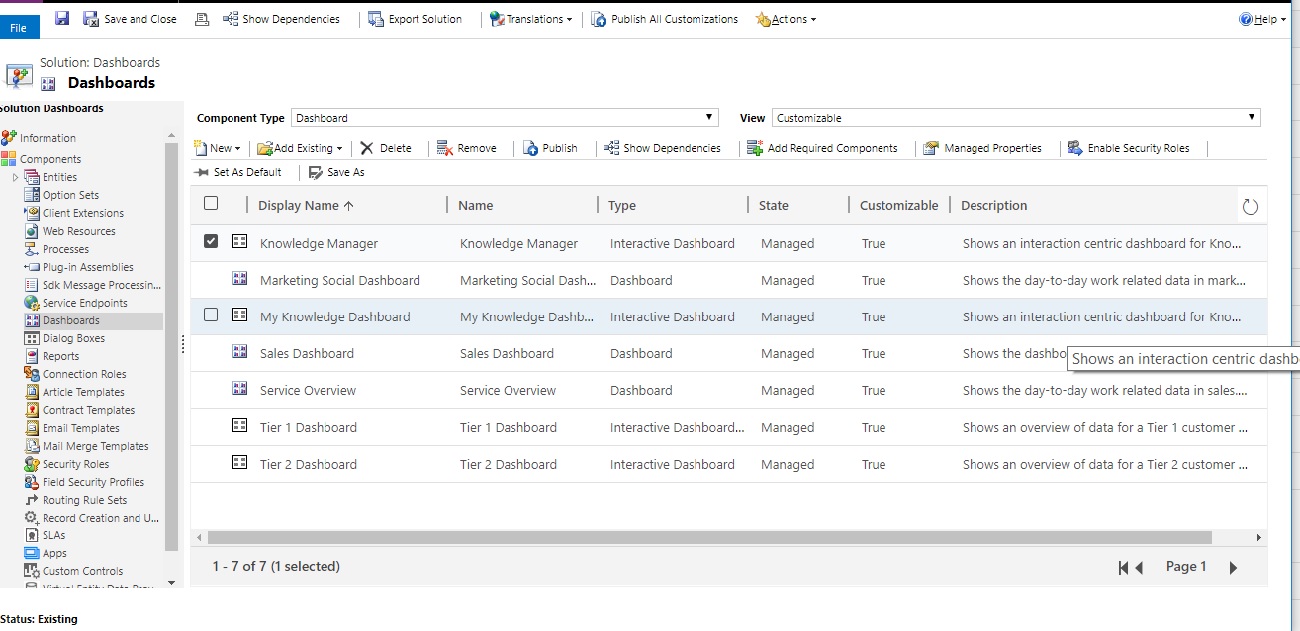
This can be done by opening the solution that contains the dashboards(If dashboards are not added to a solution, create a new solution and add the dashboards to proceed), select the dashboard that needs to be hidden and click enable security roles button. A pop up will open with security roles, and user will needs to select the security roles which should be able to check the dashboard. 


Recently I faced an issue with a client where after taking the privilege from dashboards by removing all security roles, client was able to see all of the dashboards. Client was a global admin and was the user who initiated creating of dynamics. All other users (Even system administrators were not able to check the dashboards). 

After checking this for sometime, we decided to remove the dashboards from the app they were using. You can do this by opening the app and then selecting the dashboards section from the app. There you can deselect the dashboards and then they will not appear under dashboards. This is what sorted the issue for us.

You can do this by going to the app section from the solution and opening the app. Then select the dashboard icon and deselect the dashboards.


Wednesday, November 22, 2017

Field Service Overview

I recently wanted to learn field service and googled for some good articles. I was able to find some very good articles written by Neil Parkhurst regarding the whole module.

If you are interested, this would be a great starting point for anyone.

https://neilparkhurst.com/2016/09/09/field-service-user-guide/

Setting up Field Service Demo Data

When you start working with field services, it would be easy if you have a set of records created for you to check the functionality of this. It would take bit of time to set up the administration data for you to work with it.

Fortunately, Microsoft has given some demo data for anyone to set it up and do testing. Setting this up is not straightforward. This includes using the package deployer as well.

There is a nice article written by Sanjaya Yapa to do this. If anyone is interested in doing some research, please follow the link and do the needful.

https://techjukebox.wordpress.com/2017/07/08/set-up-demo-data-for-field-services/ 

Configure Field Service Mobile App

For field service in dynamics 365, there is a mobile app that has been created using resco mobile framework. This helps a lot as the field engineers can do a lot of things from the fields using this app. Also the back office staff would get updates on how the job is coping up as well.

The mobile app has to be configured in Dynamics and it has to be carefully done.

Mitch has written a nice article on how this can be achieved. Please follow the link.

http://www.xrmcoaches.com/2017/09/lessons-learned-installing-dynamics-365-field-service-mobile-app/

Thursday, September 7, 2017

Using Kingsway soft tool to pass date time values without conversion from one CRM instance to another

With CRM date time values, when you send a request to a CRM, it always converts and saves the values in CRM by converting to UTC from the request user’s time zone. This happens when you do anything from CRM web services.

If we have to get some reference records which are having date time values (with the format being set to User Local), if we do this then the values that would be stored in CRM would be incorrect. This is the same with Kingsway soft. If we want to do this manually we would have to convert the value using a sql script and then update the other CRM instance.

Luckily, Kingsway soft tool gives you an option to store the date values as it is. There is a special feature when updating records in CRM, if you do that this issue would not occur. the feature is called  send date time values in UTC format.


The below image displays the setting that you have to add for this. 


Thursday, May 18, 2017

Export System Settings with a Solution

When we export a solution in CRM it always asks for some settings to be exported from the system and often most would ignore this and would export the components that needs to be exported. When there are any system wide setting changes that need to be changed a system administrator would go and do this manually.

This is sometimes bit of a pain as if you miss any of this there would be possibility of the system not working as it supposed to do.

Luckily Microsoft is giving the option to include them with your solution and this has been there from a long time.  However not all of the system settings can be exported, but a lot can be done. The following technet article describes what can be exported.


Try using this feature if you haven’t the next time when you want to include system settings with the solution.

Sunday, May 14, 2017

Update Modified-On Field using Kingsway Soft for CRM Data Migrations

In the previous blog I mentioned that this cannot be done as the fields doesn’t get displayed via the Kingsway tool. There is nothing wrong with it when you think about the scenario as the modified-on field should actually be set to the time a record has been modified in CRM. This would be set to the time when the record is updated via the web services.

However in most of the data migration the client needs asks the data migration team to set the modified on time to the last updated time of the record in their previous system. This is more important to them than the actual created on time of the record in the previous system.

Now the problem would be we cannot set this to modified-on time in CRM via the tool. We can set this time to the created on time via the tool and most of the client would be agreeing to it (Please note when you do this you cannot set the actual created on time of the record). Also please note that you have to set the updated on date to overridecreatedon field in the Kingsway soft tool. (You should be having a security role which has permission to update this field)

But some clients are adamant that they want to see the same date time value in the modified on time. This can be achieved by a simple plugin.

The plugin has to be registered in the pre create of the entity that you are migrating the data to. It should be having the following code. After this is set your modified on time would be set to the actual updated time from the previous system. I was greatly helped by the following blog post to get an idea about this.


if (context.InputParameters.Contains("Target") && context.InputParameters["Target"] is Entity)
            {
                //get the entity from the input parameters
                Entity entity = (Entity)context.InputParameters["Target"];

                if (entity.Attributes.Contains("createdon") && entity["createdon"] != null)
                {
                    //assign the modifiedon time to the created time for dm
                    entity["modifiedon"] = entity["createdon"];
                }
            }

Sunday, April 23, 2017

Update Createdon, CreatedBy, ModifiedBy, ModifiedOn Fields using Kingsway Soft for CRM Data Migrations

Kingsway soft is integration tool which has been done to migrate the data to a CRM environment. This a very much useful when doing migrations for CRM online instance. It is a connector which uses CRM web services when doing the migration.

It has Create, Update, Upsert, Delete (you can directly delete records from a CRM environment by making the source and the target connectors the same which makes it is as you don’t have to have an intermediate table to do this.), Merge, Convert, Execute Workflow commands.

Also you can import M:M relationship data with this.

The question remains whether you can update the createdon , createdby, modifiedby and modifiedon fields with the values from the source data.

The answer is yes, you can for 3 of the above fields, which are
  • ·       Createdon(using overridecreatedon field)
  • ·       Createdby
  • ·       Modifiedby


The modifiedon cannot be set as of now using OOTB Kingsway tools. it doesn't give the field and use the value of the time of the update to update this field. (This might get changed in a near future update of Kingsway soft)


Also important to note if you want to have both created by and modified by values (when they are different) during the migration, you would have to do a create request (which would give you the created by field to be set) and an update request (only now you would get the modified by field).

Change the Status Reason field value when a record is created or updated

There are occasions when we want to change the status reason of a record when the record is being created or updated.

For the record created, you can set the default value of the status reason from customisation and then it would be the value, the record would be having with the creation.

But what if you don’t want that value to be set for certain records when the record is created. Ok, so you must be thinking we can do it using a custom code. Yes, you are correct.

The next question would be which stage you can set it. It could before the record is created or after the record is created. Again, correct. You would definitely go for before creation as the value would be set in the pipeline and there would be only one request and it would be for the creation. If you use post create, then it would trigger an update to the record so it would not be good. Hence before creation it is.

However when you try to change this in pre create, set a value to the status reason using custom code and send it, the platform would throw an error saying you cannot change the value of a status reason in pre create stage. This leaves us in a bit of pickle. So now we would have to do this using post create, which we wanted to avoid in the first place as it would do an update to the record.

Is there a way around this?


As you would have guessed by now, yes there is. We could use the pre validate stage for this. Have your custom code registered for the pre validate stage and have the status reason field changed in that. When the pre create stage arrives already the value is set and the stage runs without any hiccups.

For update you can use the pre update stage and it works without any issues.

Export a database created in Azure, created by CRM data export feature

With CRM 365, there is a feature that has been added to export the data to a database in Azure or a VM in Azure. This particularly very useful if

  • ·       You want to use different reporting against particular data sets. Can have multiple databases on specific data sets from CRM.

o   CRM online doesn’t support SSRS reports J

  • ·       If you want to display a public register (Read only access) to outside world

o   This is particularly good as you can write stored procedures to make the queries efficient rather than calling the CRM web service, which is of slow performance for such task.

To enable this you need to enable a feature called Change Tracking at the entity level where you want the entities which should be synced with an Azure database. Also needs to create an export profile to do the syncing of data.

There would 2 data pulls.
  • ·       Initial data load in which the first time when the profile is created and the syncing is done. This would create the tables and will sync the data against the tables.

  • ·      Syncing deltas. This would happen only when a data is changed in the entity.

A very nice article about how to set this up can be found below.


Also if you select the Azure database and you want to have a local copy of it, you wouldn’t be able to create a database backup of it. This is not allowed. Instead there is a feature called export data tier application which will export the database in to a .bacpac file.

Then to import it to the local database, there is a feature called import data-tier applications and you need to select the exported .bacpac file.

The following article was very helpful to me when I was doing an export from Azure database.


CRM 365 Business Process Flow Changes

With regards to CRM 365 there have been some major changes to BPF. They are
  •    A new entity is created per each BPF created.

o   This contain records that the BPF was ran for and the stage that they were in and the duration also. Also can set the privilege for the BPF in the security role itself.

  • ·       There can be multiple BPF’s concurrently running on the same record

o   This is a nice feature as most of the clients have been asking about, but were not possible before.

  • ·       Workflows can be executed from a BPF. (Stage Entry and Stage Exist)

o   A workflow could have been written to check the stage and do execute before this. But now we can execute a workflow without checking that when a stage is reached or existed from the BOF designer itself.
  • ·       BPF designer changes


These are some of the changes that have been introduced with BPF’s. Following articles were really helpful to me when understanding this.


There is a small thing to know if your organization was updated from 2016 to 365. When you go to the BPF and try to set the security role to the BPF you don’t get a button to set it. The window displays the security roles. You would have to open the security role, go to the business process flow tab and then set the privilege to the role.
If your organization is brand new 365 one, you get the button to save rather than going to the security role and selecting it.

There is a way to do it for CRM 2016 as well without going to the security role. It has been nicely mentioned in the below blog. 


Dynamics CRM Parental Relationship behaviour

Recently in one of our projects the client came up and said that something strange is happening with created notes on a particular custom entity. What they said was there were some notes created against a custom entity record and one of the new users logged in and created a new note against that record and when another user logged in to check the record , it showed all the notes were modified by the new user, which the new user hadn’t do.

This was a strange behaviour and the client wanted to know whether we have done any custom plugins or workflows around notes. We didn’t have any and it puzzled us too.

We started trying to replicate this in our development environment to find out the reason why it was happening. We were able to replicate it sometimes and but sometimes it didn’t happen. So we drilled down to see why it was happening like that.

We were able to track it down and confirm that this only happened when we were changing the owner of the particular record. One of my colleague (Shane C) wanted to have a look at in the relationship to find out whether it is happening because of that, and he was dead right about it.

The relationship between the custom entity and the notes was a parental relationship and which meant if the owner was changed then the owner of the notes belonging to that record would be changed as well. How it works is given below.

Custom Record A is having owner AA.
Custom record A is having 5 Notes and the notes are belonging to 3 different users.

User BB comes and changes the owner of Custom record A to User DD.
According to the parental relationship as it has been setup all the Notes associated with Custom record A would be changed to Owner DD now.

Also what will happen is, all the Notes would have User BB as the modified user as well. This is because of the parental relationship changes the Owner of the notes and the user who changed the Owner of custom record would come down as the user who did the Owner change in Notes as well. This is expected behaviourJ.
It took some time to figure this out.


You can change this behaviour by changing the relationship from Parental to Cascade, but it is up to the requirement of the organization. This might not be recommended as well.

Friday, January 20, 2017

Quick Create and Javascript

With the latest versions of CRM we have got the quick create forms, in which only a number of fields would be displayed. Also the form comes up as a pop up. One thing to note with this is when you click the + sign if the quick create form to pop up the relationship should be a mandatory one between the 2 entities. If this is not the case then when you click on the + sign you would get a sort of existing lookup feature wit 10 records and then a + sign on that.

With quick creates whether to validate a value of a field or stop the record from creating is something a lot of developers would ponder about. This is because the requirements do vary with each client and they don’t want to proceeding saving the record just like from a normal main form in CRM.


The question remains whether this possible using javascript. The answer is yes, this is possible. However you would have to write odata queries to check values of the parent record as it is not easy getting values from the record which has opened the quick create. Using odata queries you definitely can query the parent record or any record you need to do validations. So yes, javascripts are definitely possible with CRM quick create form.

How to prevent a record being saved in CRM

In CRM, we can prevent the save of a record using either a plugin, synchronous workflow or a javascript.

Using a Plugin you can do by throwing an InvalidPluginExecutionException. This would stop the record from being saved. This can be done by a pre plugin.

With the introduction of CRM Synchronous workflows, you can achieve the same result. There is an option within the workflow to say stop workflow with status of Canceled. Here you can give an error message also. The only issue with this would be, you wouldn’t be able to do complex checking here without a custom workflow being written. But this is a very nice feature as you can quickly come up with a workflow for a simple validation without having to write code.
The next is Javascript. You can use this to do complex validations if you know your javascript well. Then you can stop the page from saving. You need select the save event with passing the parameter “Pass execution context as first parameter” for this.

Here, one need to be careful using javascript if you are going to check for the event to stop from saving. As there are events in CRM javascripts you need to choose for which save mode you want to stop this from happening. This MSDN article describes about save mode very nicely. https://msdn.microsoft.com/en-us/library/gg509060.aspx

If you use a code like below it would be very good to use mode 70 which is the auto save mode as is the auto save of the form is enabled if that line is not there the record would be saved. That would fail the requirement. It would be better that you always use that mode if you really want to stop the record from saving.

function preventSave(context) {
    if (context != null && context.getEventArgs() != null) {
        var eventArgs = context.getEventArgs();
        if (eventArgs.getSaveMode() == 1 || eventArgs.getSaveMode() == 70) {
            eventArgs.preventDefault();
        }
    }

}

Retrieving Calendar of a Bookable Resource in Dynamics

There are occasions where we need to retrieve working days and working times of a resource in Dynamics grammatically. This is quite possible...