Wednesday, June 13, 2018

Hiding Dashboards in Dynamics 365

There are plenty of system dashboards that gets shipped with Dynamics 365. Some of these will have some use to a client, but some may not. If they are no use what the recommended option is to set the security permissions to the dashboards to determine which security roles can check them.


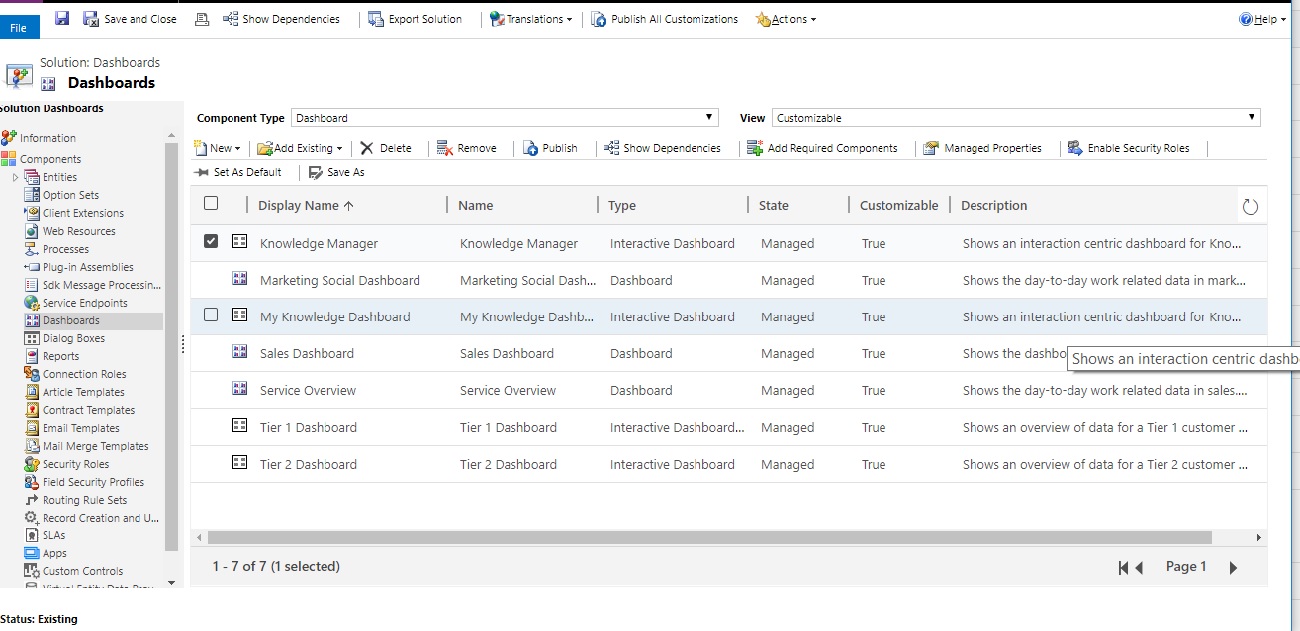
This can be done by opening the solution that contains the dashboards(If dashboards are not added to a solution, create a new solution and add the dashboards to proceed), select the dashboard that needs to be hidden and click enable security roles button. A pop up will open with security roles, and user will needs to select the security roles which should be able to check the dashboard. 


Recently I faced an issue with a client where after taking the privilege from dashboards by removing all security roles, client was able to see all of the dashboards. Client was a global admin and was the user who initiated creating of dynamics. All other users (Even system administrators were not able to check the dashboards). 

After checking this for sometime, we decided to remove the dashboards from the app they were using. You can do this by opening the app and then selecting the dashboards section from the app. There you can deselect the dashboards and then they will not appear under dashboards. This is what sorted the issue for us.

You can do this by going to the app section from the solution and opening the app. Then select the dashboard icon and deselect the dashboards.


Wednesday, November 22, 2017

Field Service Overview

I recently wanted to learn field service and googled for some good articles. I was able to find some very good articles written by Neil Parkhurst regarding the whole module.

If you are interested, this would be a great starting point for anyone.

https://neilparkhurst.com/2016/09/09/field-service-user-guide/

Setting up Field Service Demo Data

When you start working with field services, it would be easy if you have a set of records created for you to check the functionality of this. It would take bit of time to set up the administration data for you to work with it.

Fortunately, Microsoft has given some demo data for anyone to set it up and do testing. Setting this up is not straightforward. This includes using the package deployer as well.

There is a nice article written by Sanjaya Yapa to do this. If anyone is interested in doing some research, please follow the link and do the needful.

https://techjukebox.wordpress.com/2017/07/08/set-up-demo-data-for-field-services/ 

Configure Field Service Mobile App

For field service in dynamics 365, there is a mobile app that has been created using resco mobile framework. This helps a lot as the field engineers can do a lot of things from the fields using this app. Also the back office staff would get updates on how the job is coping up as well.

The mobile app has to be configured in Dynamics and it has to be carefully done.

Mitch has written a nice article on how this can be achieved. Please follow the link.

http://www.xrmcoaches.com/2017/09/lessons-learned-installing-dynamics-365-field-service-mobile-app/

Thursday, September 7, 2017

Using Kingsway soft tool to pass date time values without conversion from one CRM instance to another

With CRM date time values, when you send a request to a CRM, it always converts and saves the values in CRM by converting to UTC from the request user’s time zone. This happens when you do anything from CRM web services.

If we have to get some reference records which are having date time values (with the format being set to User Local), if we do this then the values that would be stored in CRM would be incorrect. This is the same with Kingsway soft. If we want to do this manually we would have to convert the value using a sql script and then update the other CRM instance.

Luckily, Kingsway soft tool gives you an option to store the date values as it is. There is a special feature when updating records in CRM, if you do that this issue would not occur. the feature is called  send date time values in UTC format.


The below image displays the setting that you have to add for this. 


Thursday, May 18, 2017

Export System Settings with a Solution

When we export a solution in CRM it always asks for some settings to be exported from the system and often most would ignore this and would export the components that needs to be exported. When there are any system wide setting changes that need to be changed a system administrator would go and do this manually.

This is sometimes bit of a pain as if you miss any of this there would be possibility of the system not working as it supposed to do.

Luckily Microsoft is giving the option to include them with your solution and this has been there from a long time.  However not all of the system settings can be exported, but a lot can be done. The following technet article describes what can be exported.


Try using this feature if you haven’t the next time when you want to include system settings with the solution.

Sunday, May 14, 2017

Update Modified-On Field using Kingsway Soft for CRM Data Migrations

In the previous blog I mentioned that this cannot be done as the fields doesn’t get displayed via the Kingsway tool. There is nothing wrong with it when you think about the scenario as the modified-on field should actually be set to the time a record has been modified in CRM. This would be set to the time when the record is updated via the web services.

However in most of the data migration the client needs asks the data migration team to set the modified on time to the last updated time of the record in their previous system. This is more important to them than the actual created on time of the record in the previous system.

Now the problem would be we cannot set this to modified-on time in CRM via the tool. We can set this time to the created on time via the tool and most of the client would be agreeing to it (Please note when you do this you cannot set the actual created on time of the record). Also please note that you have to set the updated on date to overridecreatedon field in the Kingsway soft tool. (You should be having a security role which has permission to update this field)

But some clients are adamant that they want to see the same date time value in the modified on time. This can be achieved by a simple plugin.

The plugin has to be registered in the pre create of the entity that you are migrating the data to. It should be having the following code. After this is set your modified on time would be set to the actual updated time from the previous system. I was greatly helped by the following blog post to get an idea about this.


if (context.InputParameters.Contains("Target") && context.InputParameters["Target"] is Entity)
            {
                //get the entity from the input parameters
                Entity entity = (Entity)context.InputParameters["Target"];

                if (entity.Attributes.Contains("createdon") && entity["createdon"] != null)
                {
                    //assign the modifiedon time to the created time for dm
                    entity["modifiedon"] = entity["createdon"];
                }
            }

Retrieving Calendar of a Bookable Resource in Dynamics

There are occasions where we need to retrieve working days and working times of a resource in Dynamics grammatically. This is quite possible...